 Biner
BinerHow to use ShotLight
Install
- Download
ShotLight-mac.dmgfrom the download page, open it and drag ShotLight to Applications. Open ShotLight; it appears in the menu bar (camera icon), not in the Dock. - The Settings window opens on the Shortcut tab. Click Use Shift+Cmd+5 for ShotLight (this turns off the macOS screenshot bar's Shift+Cmd+5; "Give back to macOS" undoes it) and then Allow Accessibility, so ShotLight catches the keys right away. Without Accessibility the change applies after you log out and back in.
- Allow Screen Recording for ShotLight when macOS asks (System Settings, Privacy & Security, Screen Recording), then quit ShotLight and open it again. macOS needs the restart to apply the permission.
- Press Shift+Cmd+5. The screen darkens: drag over the area you want.
Use
- Press Shift+Cmd+5 (or click the camera icon in the menu bar and choose Capture area). The screen freezes and darkens.
- Drag over the area you want. Drag the small white handles to resize it, drag inside to move it, or press the arrow keys to nudge it. The size in pixels is shown above the selection.
- Pick a tool from the strip on the right: pen (free drawing), line, arrow, rectangle, marker (translucent highlighter), text (click inside the selection, type, press Return). The colored dot changes the color; the curved arrow undoes the last drawing (Cmd+Z works too). Click the tool again to go back to moving the selection.
- Finish from the strip below the selection or with the keyboard: copy (Return or Cmd+C), save (Cmd+S), print (Cmd+P), close (Esc).
- Settings (menu bar icon, Settings...): save folder, ask where to save or not, PNG or JPEG, also copy after saving, open at login.
Buying and signing in
- Every feature works for 7 days without an account.
- Buy ShotLight on this site with a binersoft.com account, then open the License tab in ShotLight's Settings and sign in with that email and password. Use the same account on every Mac you own.
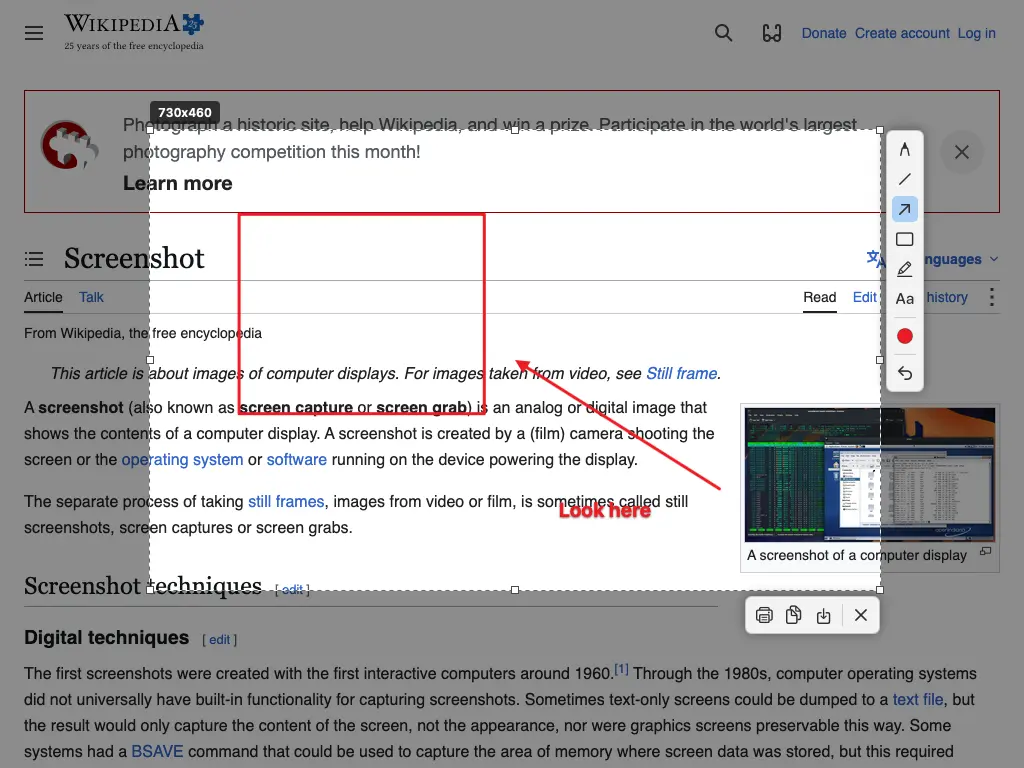
After Shift+Cmd+5: the screen freezes and darkens, you drag the area, and the tools appear next to it. Here a rectangle, an arrow and a text were added; the strip below copies, saves, prints or closes.
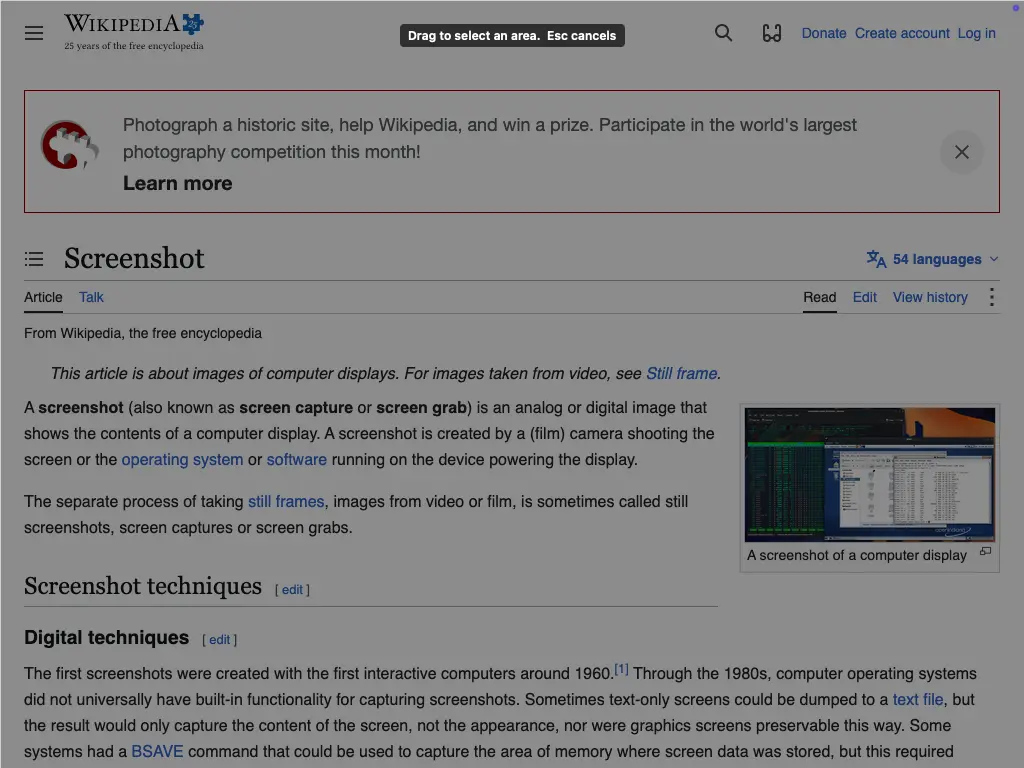
Right after pressing Shift+Cmd+5, before dragging: the whole screen is dimmed and waits for the selection. Esc cancels.