 Biner
BinerHow to use PeerRemote
Install
- Windows: download
PeerRemote-win-setup.exefrom the download page and run it. If SmartScreen appears, click More info and then Run anyway. - Mac: open
PeerRemote-mac.dmg, drag PeerRemote to Applications and open it. When macOS asks, allow Screen Recording and Accessibility for PeerRemote (needed to show the screen and to move the mouse). The app shows a Permissions panel with buttons that open the right settings. - iPhone and iPad: install PeerRemote from the App Store (see the download page for the current link).
- No account is needed. For Pro, open the Account tab in the app and sign in with your binersoft.com email and password.
Use
On the computer you want to control (the host)
- Open PeerRemote. The This computer tab shows Your ID (9 digits) and a session password.
- Give both to the person who will connect. The session password changes after every session and every restart.
- For your own computer, set a permanent password and turn on Start at login. PeerRemote keeps running in the tray (Windows) or menu bar (Mac), so you can connect any time without anyone at the keyboard.
- Prefer to approve every connection by hand? Leave the permanent password empty: a request pops up and you click Accept.
On the computer or phone you connect from (the viewer)
- Open the Connect tab, type the partner ID and click Connect.
- Type the password. The remote screen opens in its own window. Your mouse and keyboard now work on the remote computer.
- The toolbar at the top (it hides itself, move the mouse to the top edge) has: monitor switch (Pro), quality, Ctrl+Alt+Del, send file (Pro), full screen and disconnect.
- Copy on one side, paste on the other: the clipboard is shared while connected.
- Save a partner under a name to connect with one click next time (3 in Free, unlimited in Pro).
On iPhone and iPad
- Touchpad mode (default): drag with one finger to move the pointer, tap to click, two-finger tap for right click, two-finger drag to scroll, press and hold to drag, pinch to zoom.
- Direct mode: tap exactly where you touch. Handy on an iPad.
- The keyboard button opens the on-screen keyboard with an extra row for Ctrl, Alt, Shift, Cmd, Esc, Tab and the function keys.
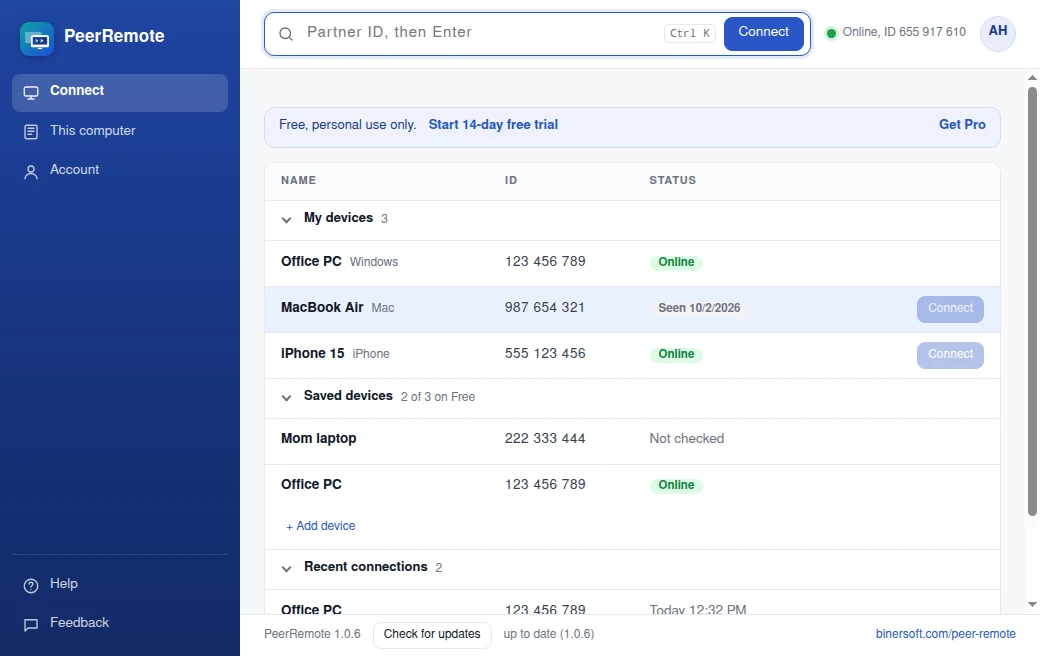
Connect: type a partner ID, or pick a device from My devices (your own computers, with online status), Saved devices or Recent connections.
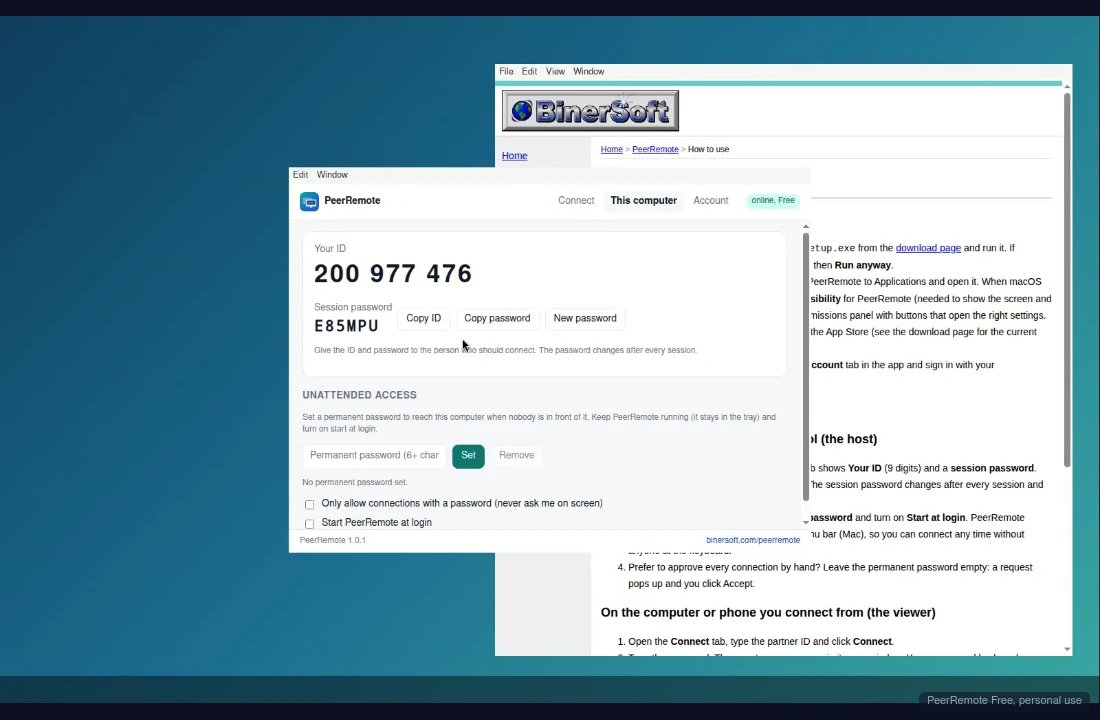
A live session: this computer is controlling another one over a direct peer-to-peer connection. The toolbar hides itself while you work.
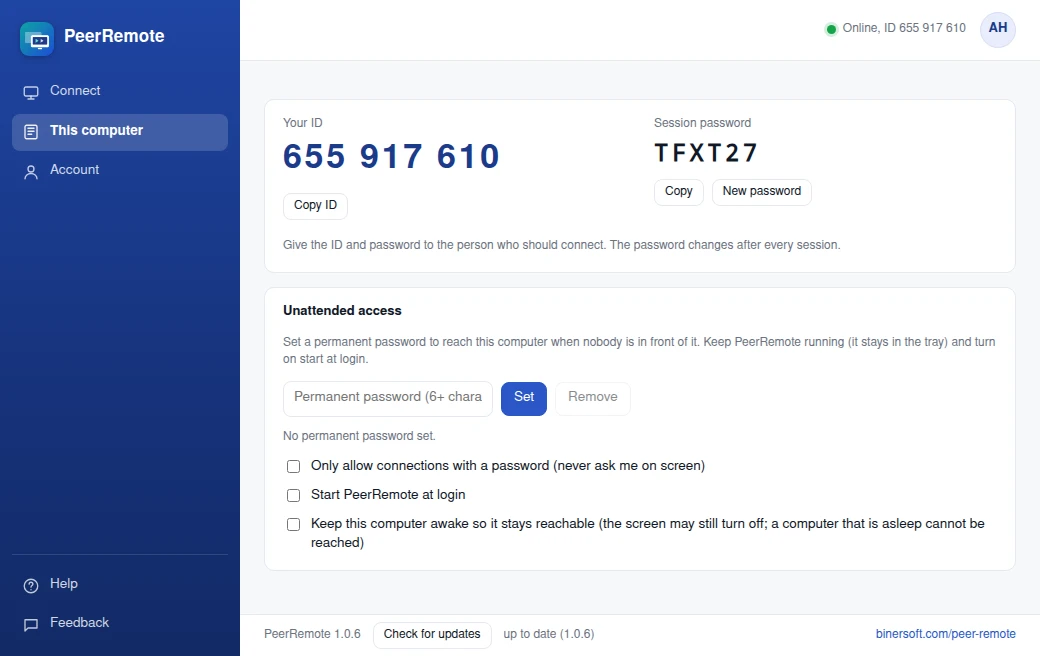
This computer: your ID and session password, the permanent password for unattended access, start at login and keep awake.